 Quantum Web Studios
Google Business Profile for Small Business: How to Show Up When Locals Search
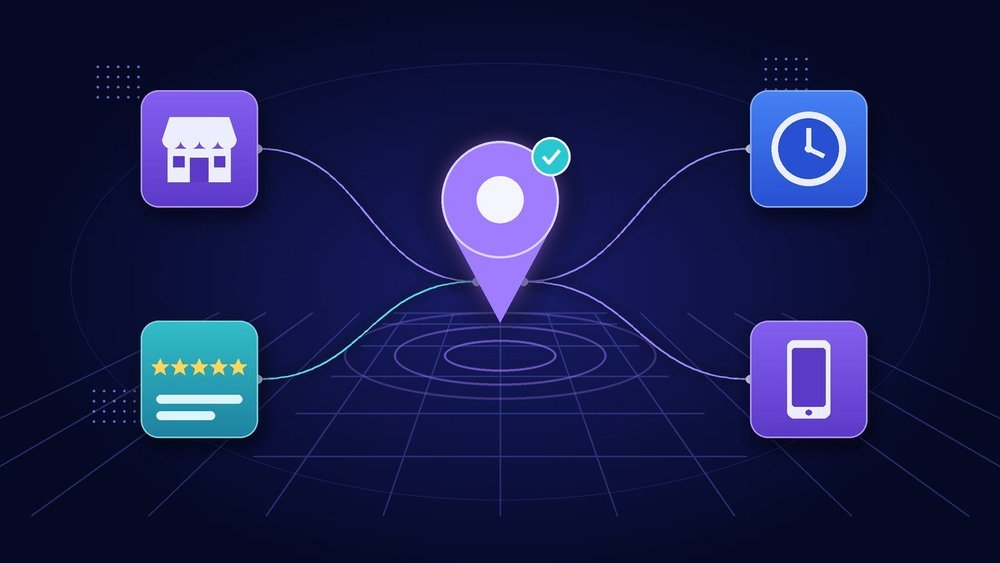
Someone in your town types "plumber near me" into their phone. Before they ever see a website, Google shows them a map and a short list of businesses, each with a star rating, hours, photos and a button to call.
That listing is your Google Business Profile. For many local customers, it is your first impression. It's free, and set up carefully it does a lot of the work of getting found. Set up carelessly, it can be suspended or outranked by the shop down the street.
Here's what Google says affects local ranking, how to set up your profile step by step, and how to earn reviews without breaking Google's rules or federal law.
What Is a Google Business Profile?
A Google Business Profile (formerly Google My Business) is the free listing that shows your business on Google Search and Google Maps. It holds your name, address or service area, phone number, hours, category, photos, reviews and a link to your website.
According to Google's guidelines for representing your business, you're eligible if your business either has a physical location customers can visit or travels to customers where they are. That covers storefronts and service-area businesses like cleaners, contractors and mobile groomers. Two things are not eligible:
- A rented mailing address or virtual office you don't actually operate from
- A desk at a co-working space unless it has clear signage, receives customers during business hours and is staffed by your team
Online-only with no in-person service? Then your website and search engine optimization carry the load instead.
How Google Decides Who Shows Up in Local Results
Google is unusually direct about this. Its help article Tips to improve your local ranking on Google says local results are mainly based on three factors:
- Relevance: how well your profile matches what someone searched for. Complete, detailed business info helps here.
- Distance: how far your business is from the searcher, or from the location in their search.
- Prominence: how well-known your business is. Google says this is based partly on how many websites link to your business and how many reviews you have, and that more reviews and positive ratings can help.
Google also says plainly that there's no way to request or pay for a better local ranking. Anyone selling a guaranteed spot in the map results is selling something Google says doesn't exist.
You can't change distance. You can control relevance with a complete, accurate profile and build prominence over time with reviews and a strong website.
How to Set Up Your Google Business Profile, Step by Step

Step 1: Claim and verify your profile
Search for your business name and city on Google. Claim the profile if it exists, or add it if not. Then verify your business. Verification proves you're authorized to manage the listing, and Google notes that verified businesses are more likely to show up in search results.
A few details from Google's verification help page that trip people up:
- Google picks the verification method. It can be phone, text, email or video, depending on your business type, region and other factors. You can't choose.
- Phone menus can block phone verification. Google states that interactive voice response (IVR) systems won't get the code. If your main line goes to a phone tree or an automated answering system, make sure someone can answer that call directly.
- Use an email address you control long term. A business email on your own domain is better than a personal inbox. (Here's why a custom business email matters.)
Step 2: Use your real business name, with no keywords
Your profile name should match the name on your signage, website and stationery. Google's guidelines specifically prohibit adding marketing taglines, service keywords, city names, phone numbers or hours to the business name. "Smith Plumbing" is fine. "Smith Plumbing, Best 24/7 Emergency Plumber Denver" can get your profile suspended.
Step 3: Choose the fewest, most specific categories
Categories help Google match you to the right searches. Google's guidance is to pick categories that complete the sentence "This business is a…" rather than "this business has a…", and to use as few as possible. Don't add categories just to chase keywords.
Step 4: Set your address or service area correctly
- Storefront: list your precise street address. Google expects permanent signage at that location.
- Service-area business: if you don't serve customers at your address (say, a contractor working from home), hide the address and set a service area instead. Google allows up to 20 service areas by city, postal code or similar, and says the overall area shouldn't extend more than about two hours of driving from where you're based.
- Hybrid: if customers visit you and you travel to them, you can show your address and set a service area.
Step 5: Add hours, phone and website
Keep your business hours accurate, including holiday and special hours. Google asks for a phone number under your direct control, ideally a local number, and a website that represents your business. Don't use a redirect or a third-party landing page.
Step 6: Write a useful business description
Describe what you do, who you serve and what makes you different. Google's guidelines say the description must not include links of any kind and shouldn't focus on prices, promotions or sales.
Step 7: Add real photos
Google suggests adding photos and videos to show customers what you offer. Use real photos of your work, your team and your location, not stock images.
Reviews: How to Earn Them the Right Way

Reviews help with prominence and often decide which business a searcher picks. They're also where owners get into the most trouble.
Make asking easy
Google's tips to get more reviews suggest sharing a review link or QR code with customers. Put it on receipts, invoices, follow-up emails and a card at the counter. Ask at the moment customers are happiest, like right after a job is finished or a problem is solved.
Never pay or reward people for reviews
Google is explicit: offering incentives such as free or discounted goods or services in exchange for posting, changing or removing reviews counts as fake and misleading content and is strictly prohibited.
Federal law has teeth here too. The FTC's Trade Regulation Rule on the Use of Consumer Reviews and Testimonials, effective October 21, 2024, prohibits fake reviews (including AI-generated ones), offering compensation or incentives conditioned on a positive or negative review, certain undisclosed reviews by company insiders, and suppressing negative reviews through groundless legal threats or intimidation. If you're unsure whether a review program is allowed, talk to an attorney before you launch it.
Reply to every review you can, especially the bad ones
Google says that replying to reviews shows customers you value their feedback. A few practical points from its help pages:
- You must verify your business before you can reply.
- Replies are public and the reviewer is notified. Google checks replies against its content policies, which usually takes up to 10 minutes but can sometimes take up to 30 days.
- Keep replies short, specific and professional. Google recommends being conversational, not promotional.
For a negative review, acknowledge the issue without arguing and offer to take it offline. Future customers read your reply as much as the review.
Your Website Still Matters for Local SEO
Your profile gets you onto the map. Your website is where people go to decide, and it helps Google understand your business.
- Match your details exactly. Your business name, address or service area, phone number and hours should be identical on your website and your profile.
- Build a page for each core service and, if you serve several towns, make it clear which areas you cover.
- Add local business structured data. Google's documentation on Local Business structured data explains how to tell Google about details like your hours and departments directly in your site's code.
- Make it fast and mobile-friendly. Local searchers are often on their phones. A slow website quietly hurts your credibility, and a desktop-first design loses mobile visitors fast.
If you're starting from scratch, Google's own SEO Starter Guide is a solid, no-hype primer.
Common Mistakes That Get Profiles Suspended or Ignored
- Stuffing keywords or city names into the business name
- Listing a virtual office or mailbox as your address
- Creating more than one profile for the same business location
- Buying reviews, swapping reviews with other businesses, or offering discounts for 5-star ratings
- Letting hours go stale, especially around holidays
What to Do After Setup
A profile is not "set it and forget it." Put a short recurring task on your calendar:
- Weekly: reply to new reviews and check for customer questions.
- Monthly: add a few fresh photos and confirm your hours, phone and website link are still correct.
- Before holidays: set special hours.
And make sure the calls your profile generates actually get answered. A great listing that sends people to voicemail is a lead handed to a competitor. That's exactly the gap an AI receptionist for small business is built to close.
How Quantum Web Studios Can Help
A Business Profile sends people to your website and your phone. We help make sure both are ready when they arrive:
- Calls that get answered. AI Voice Answering is $199/month for a dedicated number with 24/7 AI voice answering, up to 1,000 minutes per month.
- Connected follow-up. For owners who want every lead to get a next step, our AI Business Operators connect your website, CRM, email and calendar.
Frequently Asked Questions
Is a Google Business Profile free?
Yes. Google says creating a Business Profile and listing your business is free. It also states there's no way to pay for a better local ranking.
Can I have a Google Business Profile if I work from home?
Yes, if you travel to customers. Set your business up as a service-area business, hide your home address, and list the cities or postal codes you serve. You can't list a virtual office or a rented mailbox.
How long does verification take?
It depends on the method Google offers you, and Google decides which methods are available for your business. Keep your phone line answerable by a person during this step, since automated phone menus won't receive a verification code.
Can I ask customers for Google reviews?
Yes. Google encourages it and provides review links and QR codes for it. What you can't do is offer incentives for reviews, write fake reviews, or reward only positive ones. That breaks Google's policies and the FTC's consumer review rule.
Does my website affect my Google Maps ranking?
Indirectly, yes. Google says prominence considers things like how many websites link to your business, and a clear website with consistent details supports your relevance too.
Get Found, Then Get the Call
Not sure if your profile, website and phone setup are working together, or where local customers are slipping away? Book a free 30-minute Readiness Call. We'll look at how customers find you today, where they drop off, and what's worth fixing first. If nothing needs fixing, we'll tell you that too.